Volume Changer
Turn video volume up, down, or off — free, browser-based, no re-recording.
Turn Up or Lower Video Volume
This volume changer boosts quiet audio, turns down a loud track, or mutes a clip completely — from one slider, without touching the footage. Works on any video you've already recorded.
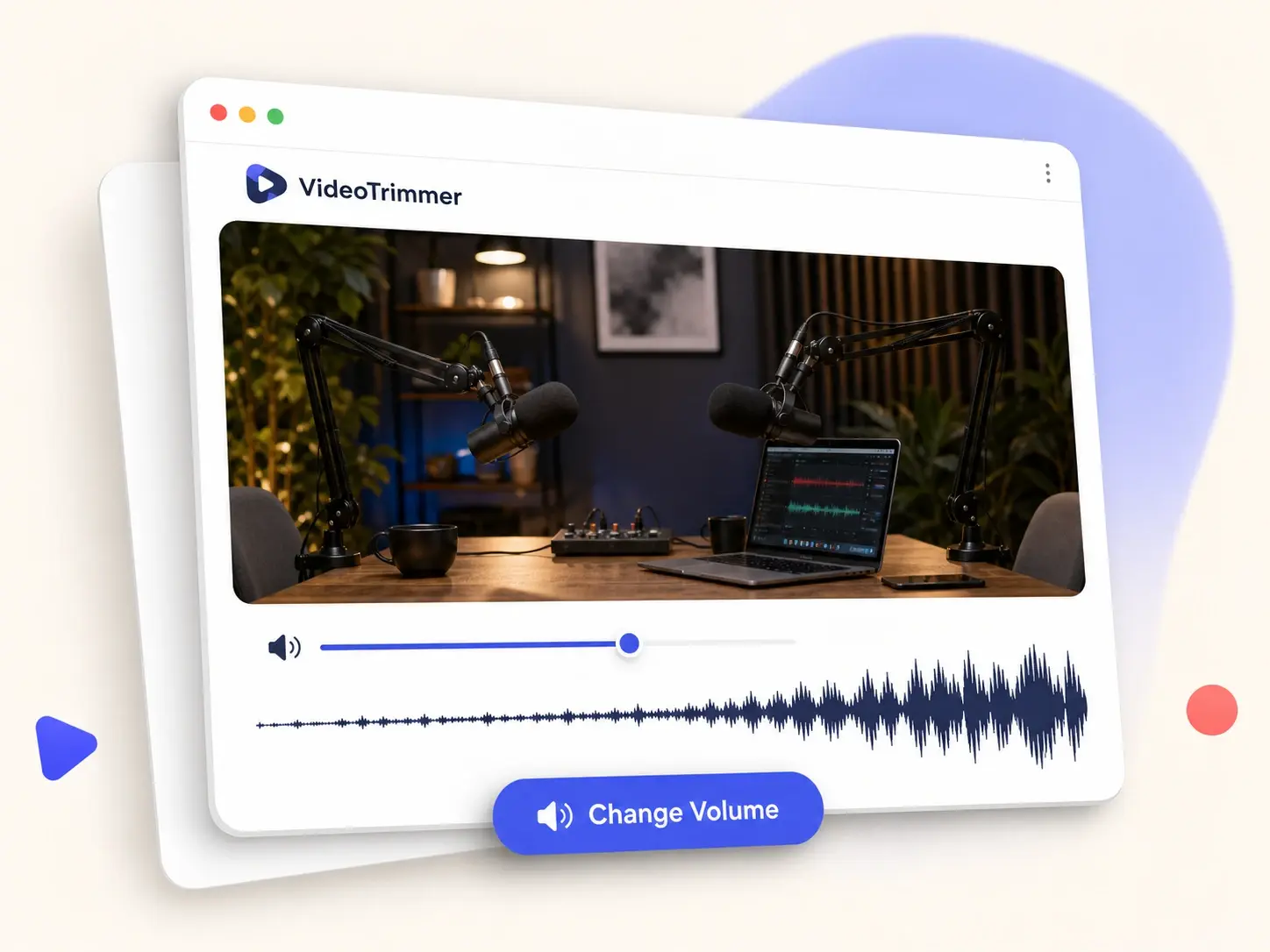
Make a Quiet Video Louder
A phone mic that picked up a voice too softly is exactly what a volume changer is for.
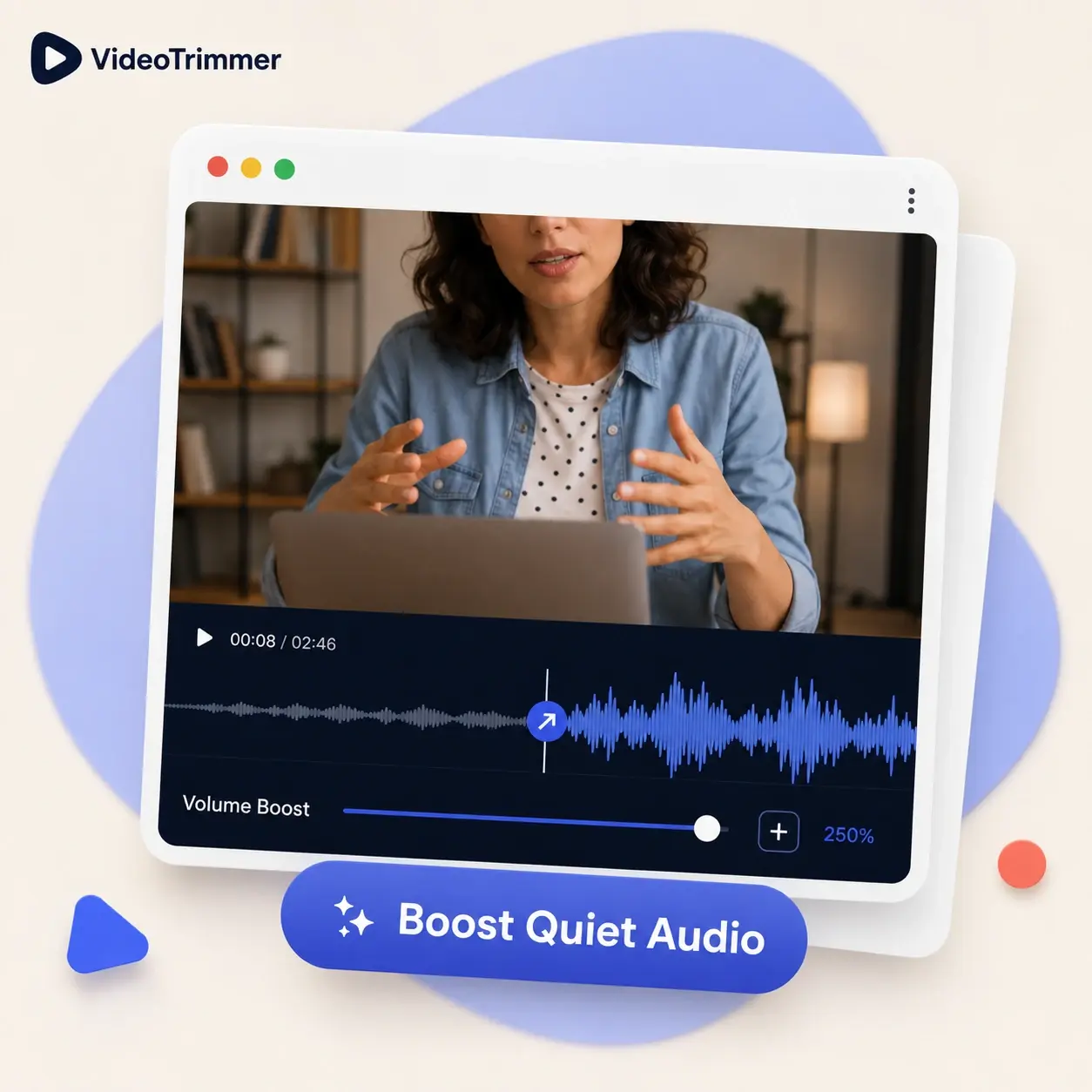
Turn Down or Mute Audio
A track that clips at the peaks, or a clip you need silent before forwarding it — a volume changer handles both directions.

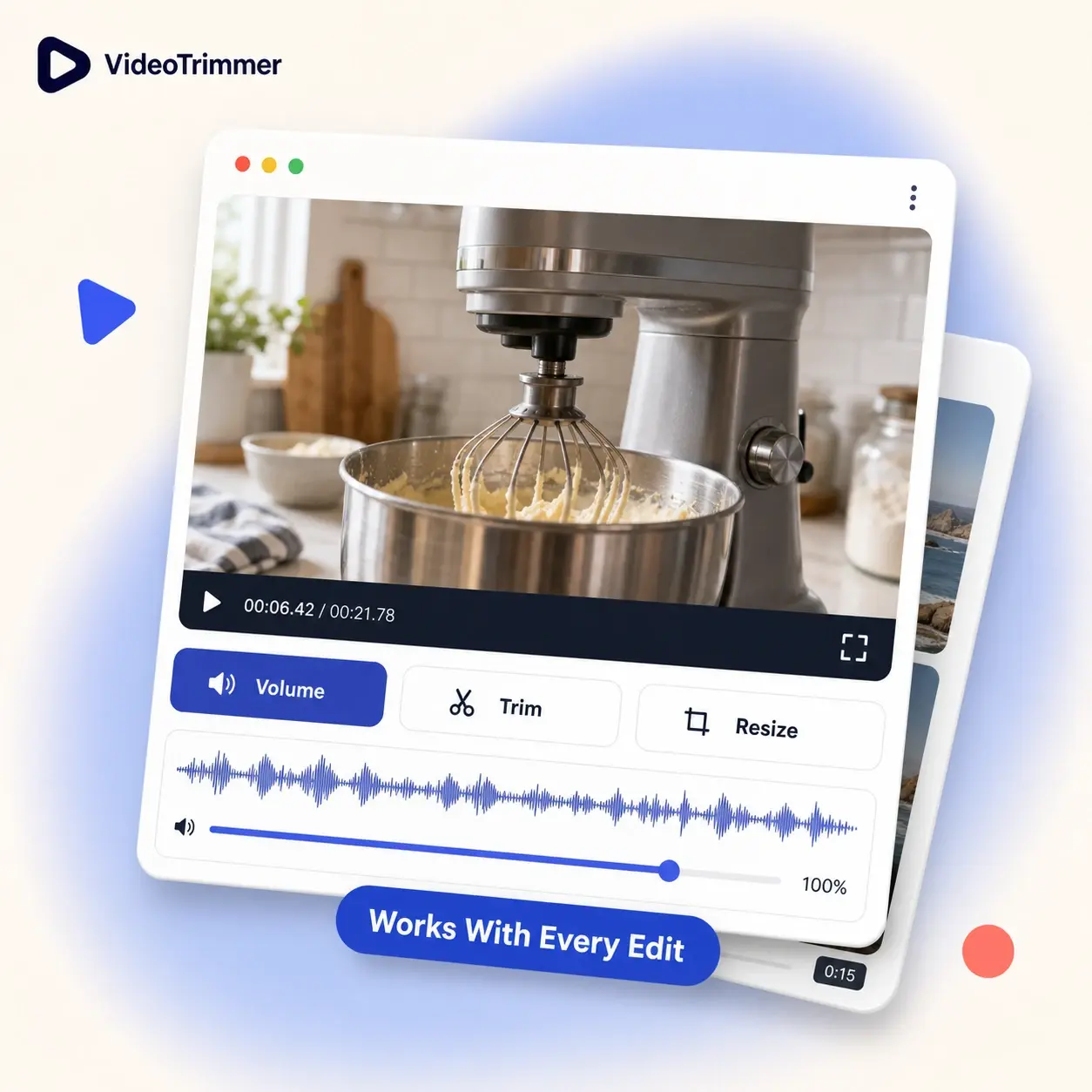
This Volume Changer Works With Other Edits
Adjust the level alongside a trim, a crop, or a speed change — all before one export, without re-opening the file each time.
Who's Using This Volume Changer
Different jobs turn to a volume changer for very different reasons, all solved by the same slider.
Podcast hosts
Use a volume changer to level out remote guests who recorded at very different volumes than the host.
Teachers
Boost quiet lecture audio so it's clear for students watching from home.
Support teams
Mute background noise in a screen recording before sending it to a customer.
Content creators
Balance the volume across clips before posting, without opening a full audio editor.
Event videographers
Even out audio between a lapel mic and a room mic recorded on the same clip.

One Slider, Every Volume Fix
Every fix in this volume changer works the same way, whether the mic was too far away or too close.
Near-silent to well above the original recorded level.
Mute the entire track instantly for a silent version.
Volume changes never touch playback speed.
Runs in the browser — nothing to download.
Skip Re-Recording the Audio
If the picture is fine, a volume changer fixes the rest — no reason to reshoot anything.
Volume Changer | Reshoot or re-record | |
|---|---|---|
| Fix audio that's too quiet | Boost in one step | Re-record with a mic closer |
| Mute a clip before sharing | Edit out the original audio | |
| Time needed | Under a minute | Reshoot the scene |
| Works on a file you already exported | Original recording only | |
| Needs new software | Often an audio editor | |
| Preview before exporting | Sometimes |
“I record interviews remotely and guests are never at the same volume as me. Boosting a quiet guest track after the fact has saved more episodes than I'd like to admit.”
Talia B.
Podcast host
“Background chatter drowns out my voice for students sitting further from the mic. Boosting the volume before I post the recording makes a real difference at home.”
Mr. Alden R.
High school teacher
Volume Changer FAQ
Common questions before adjusting video volume.
Can I make a quiet video louder without distortion?
Boosting raises the existing level, so quiet recordings sound clearer — but audio that was already clipping will still clip at a higher volume.
How do I mute a video completely?
Set the slider to zero, or use the mute toggle, then export — the video keeps playing with no audio track.
Does changing the volume affect video quality?
No. Volume only affects the audio level; the picture exports at the same quality as the source file.
Can I turn the volume down instead of up?
Yes — the same slider works both directions, so quieting loud audio is just as easy as boosting soft audio.
Is this the same as a system volume booster app?
No — a volume changer like this one changes the level baked into the exported file itself, not whatever is currently playing through your speakers.
Can I boost the volume on just part of a video?
The volume applies to the whole exported range, so trim to the section you want first, then adjust its level.
Does muting remove the audio track completely?
Muting keeps a silent audio track in the file rather than deleting it, which keeps the video compatible everywhere it's played.
Will the fix still work after I re-upload the video elsewhere?
Yes — the new volume level is part of the exported file, so it stays the same no matter where the clip is uploaded or replayed.